FreeWebCheck
Why My Page Link Analyzer Doesn't Work Like Ahrefs (And Why That's OK)
I get this question a lot: “Does your link analyzer show me who links to my site?” The honest answer is no. It can’t do that — not without a massive web crawl index that costs millions to maintain. Ahrefs, Majestic, and Moz have spent years building those indexes. I haven’t.
So what does it do? Let me explain.
What the Page Link Analyzer Actually Checks
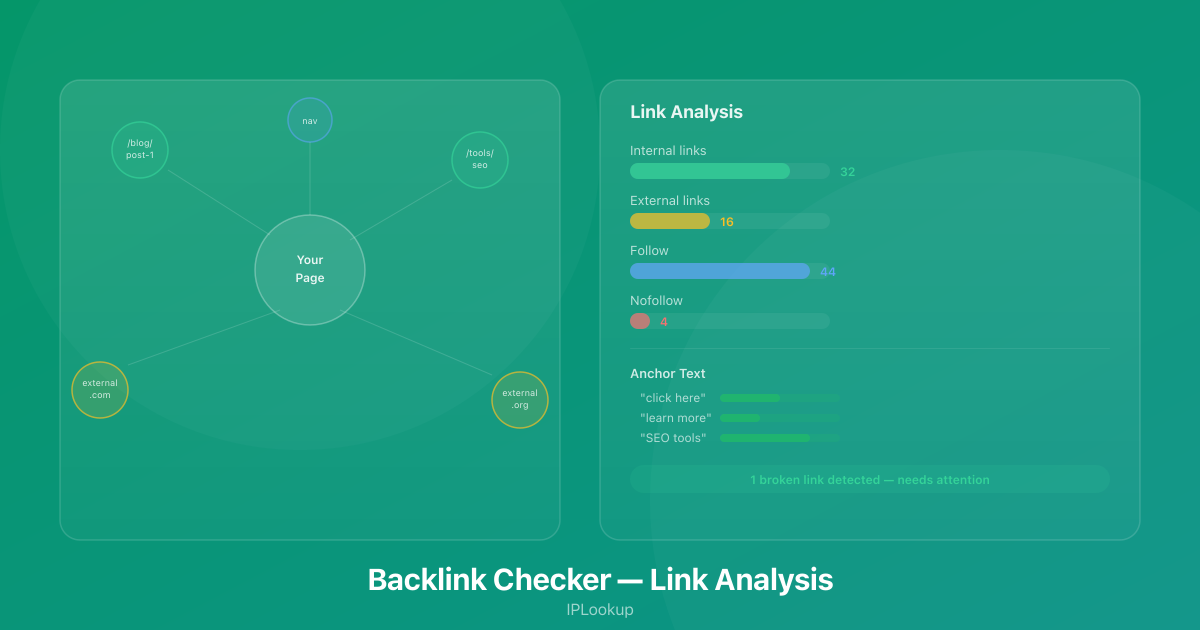
My free page link analyzer analyzes every link on a page you give it. Not the whole internet — just that one page. But it goes deep on that single page. Here’s what it tells you:
- Total links found — The raw count of all links on the page
- Internal vs external breakdown — Links to your own site versus links to other domains. A healthy page should have a good mix of both.
- Follow vs nofollow distribution — Which links pass PageRank and which don’t. Too many nofollow links can be a red flag.
- Anchor text distribution — The actual clickable text of each link. Are you over-optimizing with exact-match anchors? Are your internal links using generic text like “click here”?
- Link location — Where on the page each link appears: header, footer, navigation, sidebar, or main content. Links in the main content area carry more weight.
- Broken link detection — Links pointing to pages that return 4xx or 5xx status codes. Broken links hurt user experience and waste crawl budget.
- Risk scoring — Every link gets a risk score from 0 to 100 based on factors like short URLs, suspicious TLDs, spammy keywords in the anchor text, unknown domains, and missing HTTPS. High-risk links are flagged as toxic.
The Link Detail View
Each link in the report shows you more than just a URL. You can see:
- Location badge — A letter indicating where the link lives: Content (C), Header (H), Footer (F), Navigation (N), or Sidebar (S)
- Link type — Internal (I) or External (E), so you can quickly scan the balance
- Target page — Where the link points. For internal links, this shows the path on your site. For external links, it shows the full URL.
- Anchor text — The visible, clickable text of the link. This is critical for SEO — descriptive anchor text helps search engines understand the context of the linked page.
- Risk assessment — A color-coded dot (green, yellow, or red) indicating low, medium, or high risk, with specific reasons listed when you expand the detail.
This level of detail makes it easy to spot patterns. For example, if all your external links are in the footer and all use “click here” as anchor text, that’s a signal you should diversify your linking strategy.
When This Is Actually Useful
You might think “so what?” but here’s when this data matters:
Your own pages. Drop in a blog post URL and see if you’re linking to other relevant posts on your site. Are your best pages getting internal links from your content? Or are your footer links bloated with nofollow tags? A strong internal linking structure distributes authority throughout your site and helps search engines discover all your content.
Competitor pages. Run a competitor’s page through the analyzer. What external resources do they link to? Are they linking to authoritative sources that improve their credibility? Are they linking to their own money pages with follow links? You can learn a lot from how competitors structure their link profiles and apply those lessons to your own strategy.
Your homepage. Is it linking out to too many places? Does every page on your site link back to the homepage? Should some outbound links be nofollow? Are there any broken links you forgot about? The homepage is usually your strongest page, so the links on it matter more than most.
Guest posts and outreach. If you’re writing guest posts, run the page through the analyzer to verify your links are in the main content area, followed, and using the anchor text you negotiated. I’ve caught several instances where a publisher moved a link to the footer or made it nofollow without telling me.
How Link Location Impacts SEO
Not all links on a page are equal. Search engines give more weight to links in the main content area than links in the header, footer, or sidebar. This makes sense — a link within an article is more likely to be an editorial recommendation, while a footer link is often a navigation or SEO spam.
The analyzer breaks down links by location so you can see exactly where each link appears. If your most important outbound links are buried in the footer, you might want to move them into your content. This is especially relevant for affiliate links and resource recommendations.
Understanding Risk Scoring
Every link is assigned a risk score from 0 to 100. Here’s what goes into that score:
- Shortened URLs (+25) — Links using bit.ly, tinyurl, or similar shorteners can mask the true destination and are often used in spam
- Spam keywords (+30) — Anchor text containing words commonly associated with spammy websites
- Suspicious TLDs (+20) — Uncommon top-level domains that are frequently used for spam campaigns
- Redirect patterns (+15) — Links that pass through redirect chains, which can be a sign of cloaking or affiliate abuse
- Unknown domains (+30) — Domains that don’t appear in our trusted list and haven’t been seen before
- Missing HTTPS (+20) — Links pointing to non-HTTPS pages in 2026 is a red flag
- Anchor quality (+10-15) — Empty, numeric-only, ALL-CAPS, or overly long anchor text
On the flip side, links to trusted domains like google.com, github.com, or wikipedia.org get a −40 deduction. The final score maps to a risk level: 0-30 is low, 31-70 is medium, and 71+ is high (toxic).
The New and Lost Links Feature
One of the most useful features is tracking how a page’s link profile changes over time. Run the analyzer once to establish a baseline. Run it again later, and the tool shows you:
- New links — Links that appeared since your last analysis, with a count and the specific URLs
- Lost links — Links that disappeared, flagged so you can investigate whether a resource went offline or someone removed your link
This is particularly valuable for monitoring your own pages after you make content updates. Did you accidentally remove important internal links when you rewrote that blog post? The lost links report will tell you.
The Honest Limitation
My tool analyzes links server-side on demand. It doesn’t crawl the web. It doesn’t have a link index. If you need to discover who links to you across the web — backlinks from other sites — you need Ahrefs, Majestic, or Google Search Console.
But if you want to audit the links on a specific page — for free, without signing up, with risk scoring, location breakdown, and new/lost tracking — give it a shot. It’s one page, analyzed deeply, with actionable results you can use immediately.
Quick Checklist for Link Audits
Before publishing a new page or updating an existing one:
- Are internal links using descriptive anchor text (not “click here”)?
- Are the most important outbound links in the main content, not the footer?
- Are external links to trusted, authoritative sources?
- Are nofollow tags used appropriately (user-generated content, sponsored links)?
- Are there any broken links that need fixing?
- Do your best pages receive internal links from your newer content?
- Is the ratio of internal to external links reasonable for the page type?