FreeWebCheck
How to Use IP Compare and IP Lookup for Network Troubleshooting
I manage a small server fleet for a side project — three VPS instances across different providers. Every time something breaks, I check IPs first. Is traffic going where it should? Are my DNS records right? It gets tedious fast without a proper tool.
FreeWebCheck’s IP Lookup gives you location, ISP, ASN, and more in one click. IP Compare lets you compare addresses side by side — including multiple pairs via comma-separated inputs. Here’s how to use them, and a few things I’ve learned along the way.
When to Reach for These Tools
Auditing Your Network Infrastructure
If you manage multiple servers, you probably have a spreadsheet of IPs floating around somewhere. Use IP Compare to check them in pairs, or IP Lookup for individual addresses.
Say your infrastructure spans AWS (US-East), DigitalOcean (London), and a dedicated box in Germany. Comparing their IPs confirms each belongs to the right provider and region. One thing I’ve noticed — an IP showing unexpected data is almost always a misconfiguration. DNS records pointing to the wrong region, or a migrated server with stale addresses still in use.
Checking Proxy and VPN Lists
Got a list of proxy servers or VPN IPs? Look them up individually to verify they’re active and in the right location. The IP Lookup tool shows ISP and organization. If that “European proxy” actually resolves to a Singapore datacenter, you’ll know immediately. Use IP Compare to check proxies against each other when something feels off.
Security Incident Response
When reviewing logs after a security incident, you’ll see a pile of suspicious IPs. Running each through IP Lookup reveals where it’s registered and who owns it. In practice, this helps you separate real threats from known crawlers or monitoring services. I’ve had mornings where I was sure we were under attack — turned out to be a new monitoring probe I forgot we set up.
Monitoring CDN and Service Endpoints
Troubleshooting a service that uses multiple IPs, like a CDN or load balancer? IP Compare lets you check addresses side by side. You can confirm they’re all from the same provider and roughly the same region. But here’s a caveat — CDN IPs can shift. Don’t rely on a single data point; check periodically.
Using the IP Lookup Tool
The IP Lookup tool is straightforward:
- Enter an IP address
- Click “Look Up” — it fetches location, ISP, ASN, and more
- Review the results: city, region, country, coordinates, ISP, ASN, organization, timezone, connection type
Under the hood it queries ipinfo.io with ipify.org as fallback. Handles both IPv4 and IPv6.
Using the IP Compare Tool
The IP Compare tool puts addresses side by side (including multiple pairs via comma-separated inputs). Useful for:
- Verifying anycast routing — Two IPs under the same ASN but routing to different locations? That’s anycast in action.
- Comparing VPN vs real IP — See exactly how your connection changes behind a VPN.
- Checking CDN behavior — How does a CDN route traffic from different regions?
- Troubleshooting geolocation issues — Two IPs from the same provider showing different locations? That’s worth investigating.
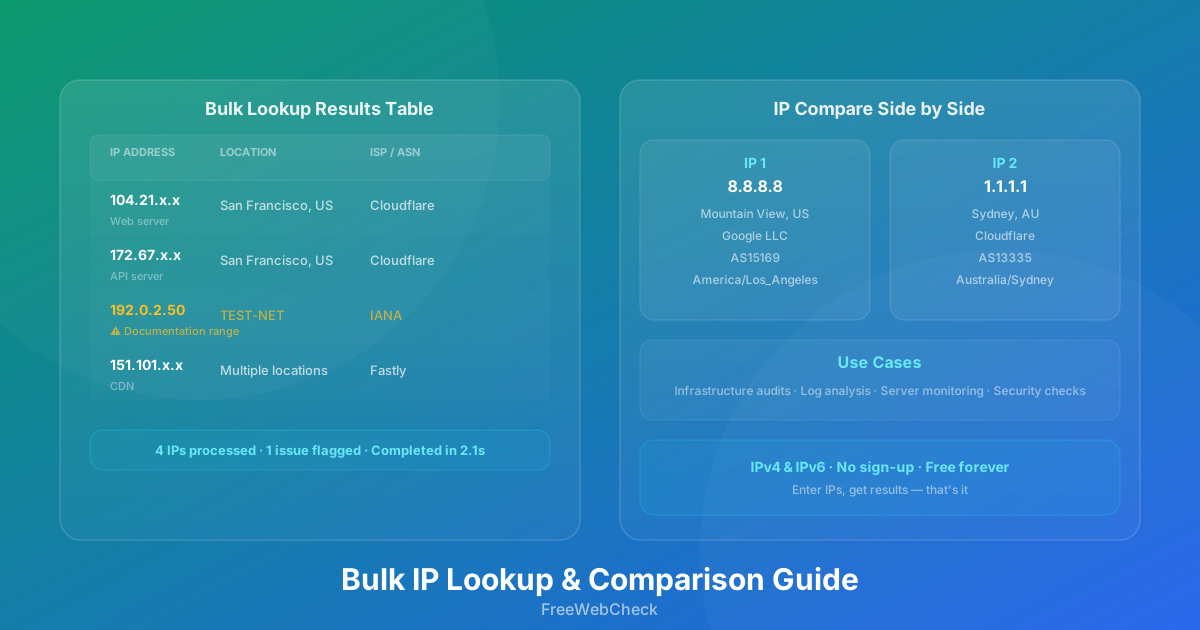
The comparison shows IP, city, region, country, coordinates, ISP, ASN, organization, timezone, and postal code in a clean table. Enter multiple IPs per field separated by commas to compare several pairs at once.
Practical Example: Server Infrastructure Audit
Let’s walk through a real scenario. You manage a web app across multiple providers:
- Web server:
104.21.x.x - API server:
172.67.x.x - Database:
192.0.2.50 - CDN:
151.101.x.x
Running these through IP Lookup:
Web server (104.21.x.x): Cloudflare, San Francisco — Expected.
API server (172.67.x.x): Cloudflare, San Francisco — Expected (same CDN).
Database (192.0.2.50): Documentation range (TEST-NET). Either a test IP by mistake, or a config issue. The lookup flags it immediately.
CDN (151.101.x.x): Fastly, multiple locations — Expected.
One bad IP caught in seconds. Without a tool, you’d be manually searching each address or running whois commands one by one.
Comparing the web server and API server in IP Compare confirms they’re both on Cloudflare in San Francisco. Exactly what you’d expect.
Another Example: Log Analysis
Firewall logs turn up these suspicious IPs:
185.220.101.23
198.51.100.45
91.121.89.12
5.255.100.50
Running them through IP Lookup:
185.220.101.23: Tor exit node (Tor Project ASN). Likely not malicious — just Tor users browsing your site.
198.51.100.45: Documentation range (TEST-NET). Not a real IP. Could be a scanning tool with fake source addresses.
91.121.89.12: OVH datacenter, France. Hosting IP. Worth investigating further — could be legitimate or malicious.
5.255.100.50: Yandex, Russia. Search crawler. Benign, can be whitelisted.
A couple of minutes and you’ve categorized all four. If you wanted to compare any two — say the OVH and Yandex IPs to check for shared infrastructure — IP Compare gives you the side-by-side view.
Tips for Effective IP Analysis
Use ASN as your primary filter. The organization field tells you the network owner. IPs from the same ASN are typically managed by the same entity. Cloudflare explains that an ASN uniquely identifies a network operator, making it a reliable ownership indicator (source). I’ve found ASN data more reliable than location for identifying IP ownership.
Cross-reference with your own data. IP Lookup shows public registration data. For security investigations, combine it with your own logs and threat intelligence feeds. Public data is useful but it’s not the full picture.
Watch for documentation ranges. IPs in 192.0.2.0/24, 198.51.100.0/24, and 203.0.113.0/24 are reserved for testing. They should never appear in real traffic. Cloudflare confirms these TEST-NET ranges are reserved by IANA (source). If they show up, something is wrong.
IPv6 needs the same scrutiny. Both tools support IPv4 and IPv6. Don’t skip IPv6 in your audits — misconfigurations there are surprisingly common. I’ve seen sites with perfect IPv4 setup but broken IPv6 routing that went unnoticed for months.