FreeWebCheck
PNG vs JPEG vs WebP: Which Image Format Should You Use?
Use WebP. That’s the short answer for most images on the web today. But there are exceptions, and understanding them is the difference between a fast site and a frustrating one.
A few months back I took over a client site where every single image was a PNG. Photographs, icons, screenshots, you name it. The hero alone was 2.4 MB. Swapping it to JPEG at quality 80 got it down to 180 KB and nobody could tell the difference. Not one person.
JPEG — When Universal Support Matters
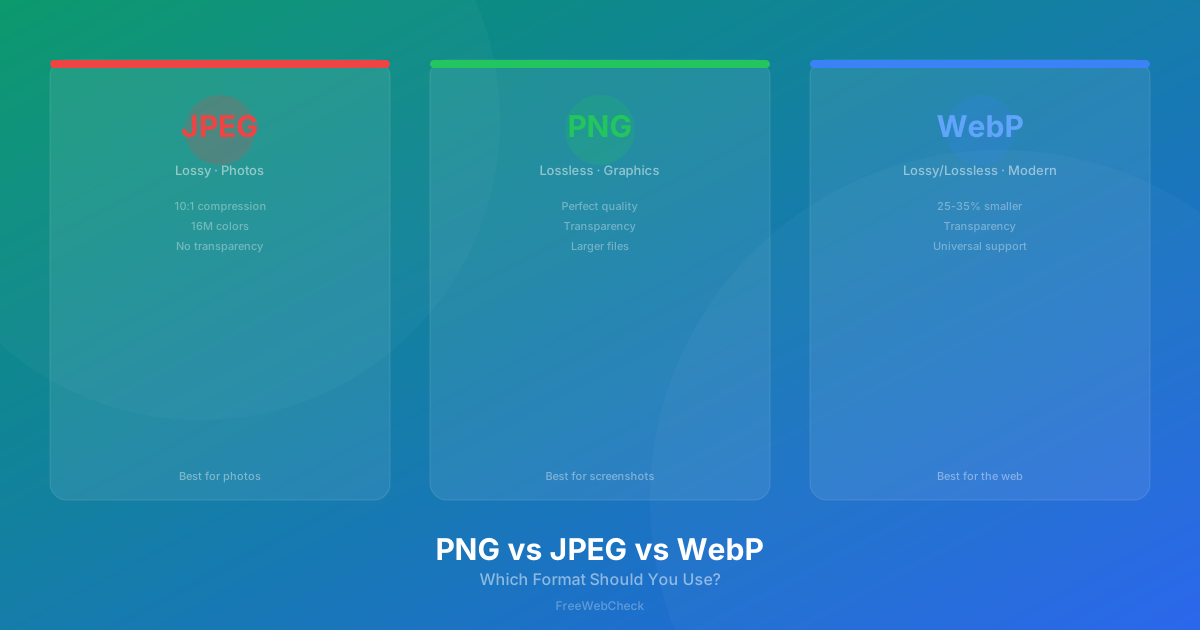
JPEG has been the web’s default since the 1990s. It uses lossy compression — it shrinks files by throwing away image data that your eyes probably won’t miss. The trick is finding the line between “looks fine” and “looks like a 90s video game screenshot.”
For photographs, JPEG is still hard to beat. At quality 80, a JPEG is often 80-90% smaller than the original camera file. I’d bet most visitors couldn’t pick the difference in a blind test. Drop to 50 and you’ll notice artifacts in gradients and around text — fine for thumbnails, not for hero images.
The catch: no transparency, and lossy compression turns sharp edges into blocky messes at low settings. Avoid JPEG for screenshots, logos, or anything with text overlays. It also doesn’t support animation.
PNG — Precision When You Need It
PNG is lossless — every pixel stays exactly as it was. That makes it perfect for screenshots, logos, and images with text where sharp edges matter. It also supports full alpha transparency, which JPEG can’t do at all.
I’ll be honest, I used to save everything as PNG until I actually ran the numbers. A screenshot of a typical web page as PNG runs 300-800 KB. The same image as a quality-80 JPEG is maybe 100-200 KB — but with visible artifacts around text and buttons. That difference adds up across a whole site. These days I reserve PNG for things that actually need it — text-heavy screenshots, anything with transparency — and let WebP or JPEG handle the rest.
The tradeoff: PNG files are much larger than JPEG for photographic content (3-5x bigger), and there’s no animation support.
WebP — Best of Both Worlds
Google built WebP to answer a question nobody else seemed to ask: what if you could get JPEG’s compression and PNG’s transparency in one format? It delivers 25-35% smaller files than JPEG at the same visual quality, handles transparency, and even supports animation. Google’s official WebP documentation confirms that lossy WebP images are 25-35% smaller than JPEG at equivalent quality (source).
The real-world numbers are hard to ignore. Take the hero image on your homepage — a quality-80 JPEG at 200 KB. Convert it to WebP and it drops to around 140 KB. On a page with 10 images, that’s 600 KB you don’t need to download. All modern browsers support it (Chrome, Firefox, Safari 14+, Edge), so there’s not much reason to skip it. MDN’s browser compatibility data confirms WebP is supported in over 96% of global web traffic (source).
The downsides: it doesn’t work in older browsers (Safari before 14, Internet Explorer), and processing takes slightly more CPU time than JPEG encoding. Lossy WebP can show similar artifacts to JPEG at very low quality settings.
AVIF — The Emerging Option
AVIF promises 20-30% better compression than WebP. Chrome and Firefox support it; Safari joined in version 16. But browser support is still catching up, so WebP is the safer choice for now. Worth keeping an eye on, but I wouldn’t rely on it as your primary format yet.
Real-World Numbers
Here’s how the same photograph compares across formats:
| Format | Quality | File Size | Notes |
|---|---|---|---|
| JPEG | 80 | 100 KB | Excellent quality, universal support |
| PNG | Lossless | 450 KB | Perfect quality, much larger |
| WebP | 80 | 70 KB | Same quality as JPEG, 30% smaller |
| AVIF | 80 | 50 KB | Same quality as JPEG, 50% smaller |
Which Format Should You Use?
Rule of thumb: WebP for almost everything, JPEG as fallback for older browsers, PNG when you need transparency or lossless quality on screenshots. SVG for logos and icons. For email newsletters — JPEG only, WebP isn’t reliably supported in email clients.
The Image Toolkit handles conversions between all these formats. Upload, pick your target, download. Everything runs in your browser.