FreeWebCheck
Is Public Wi-Fi Safe? What Happens When You Connect
I sat in a Kathmandu coffee shop last month, connected to their free Wi-Fi (no password required), and ran a few tests. Within minutes I could see which devices were on the same network, what websites they were visiting, and — for one unencrypted site — the actual content of someone’s browsing session. I wasn’t using special tools, just basic network inspection software anyone can download. The guy next to me was checking his email over HTTP. I could have read every word.
That’s the reality of public Wi-Fi. Most people assume it’s safe because they’ve never had a problem. But the problem isn’t that something bad happens every time you connect — it’s that the potential is always there, and you often have no way of knowing.
The Attacks, From Most to Least Likely
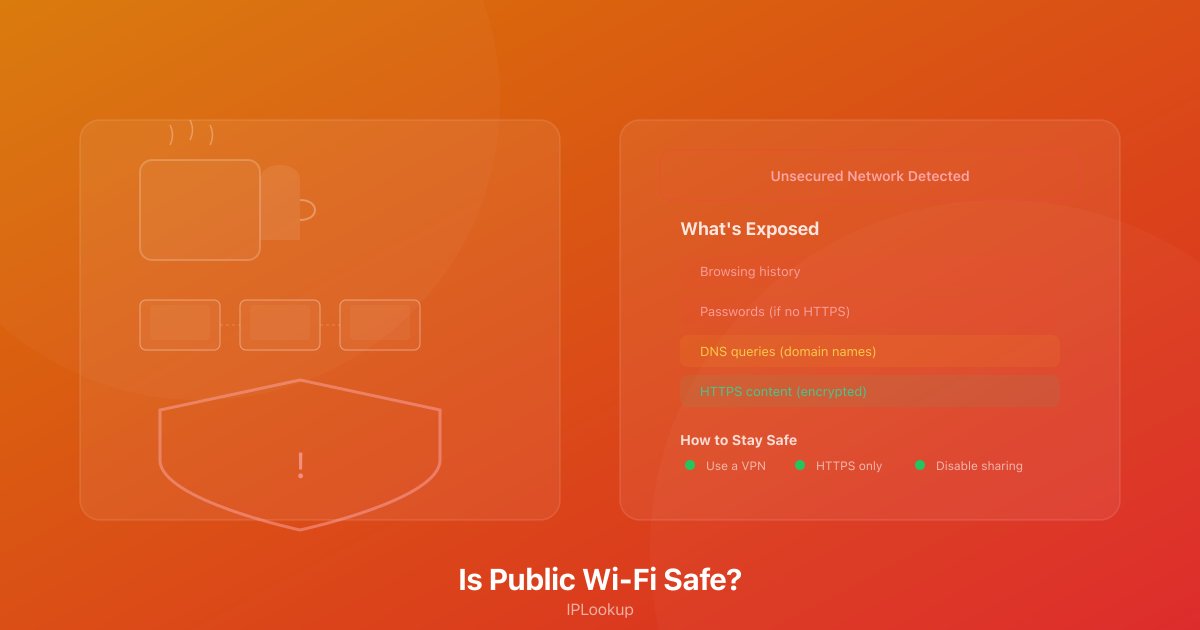
Packet sniffing is the most common and the easiest. Anyone on the same Wi-Fi network can capture data packets heading to and from your device. If you’re visiting an HTTPS site, the content is encrypted, but the metadata leaks — which sites you visit, how long you stay. For HTTP sites, someone can read the full page content, including anything you type into forms. Wireshark is free and takes about ten minutes to learn the basics. That’s the bar.
Man-in-the-middle attacks take more effort but aren’t rare enough to ignore. Someone on the same network intercepts the connection between your device and the router, then feeds you their own responses instead of the real ones. They could serve you a fake login page for your bank that looks identical to the real one. Your browser might not warn you if the fake certificate is from a compromised CA.
Evil twin networks are the simplest setup: an attacker creates a Wi-Fi network with the same name as the coffee shop’s real network. Your phone auto-connects to whichever signal is stronger. If the attacker’s laptop is closer, that’s where your traffic goes. You don’t even notice because your device picked the “better” signal.
I’ve also run into situations where the coffee shop’s own network was misconfigured — allowing devices on the same network to see each other when it shouldn’t. That’s not malicious, but it means the person at the next table could potentially access shared folders on your laptop if you haven’t disabled file sharing.
What Actually Protects You
HTTPS handles most of the content encryption. If the site has a padlock in your address bar, the attacker can’t read your messages, passwords, or credit card numbers. Cloudflare explains that HTTPS encrypts the content using TLS, although the domain name (SNI) and connection metadata can still be observed (source). But they can still see you visited bank.com — just not what you did there. That’s better than nothing, but it’s not full protection.
A VPN fills the gap. When you connect to one, all your traffic goes through an encrypted tunnel to the VPN server. Someone monitoring the coffee shop network sees a single encrypted stream going to one server. They can’t tell which sites you’re visiting, what pages you’re reading, or how long you spend on each. This is the only way to hide your browsing metadata from local network snooping.
DNS over HTTPS helps too, and it’s free. Without it, every domain you look up — bank.com, health-clinic.org, rival-company.com — gets broadcast in plain text, even if the site itself uses HTTPS. Cloudflare notes that DNS over HTTPS encrypts queries so eavesdroppers on public Wi-Fi cannot see which domains you are visiting (source). Chrome, Firefox, and Edge all support DoH. Turn it on in your browser settings.
What I Actually Do
I use a VPN on any network I don’t control. Coffee shops, hotels, airports, conference venues, even the “guest” network at someone’s house. Not because I’m doing anything sensitive — I’m usually just reading email and browsing the web. But it’s a simple toggle that removes an entire category of risk. Most of the time, nothing would happen without it. But the one time something does, I don’t want to explain to a client how their credentials got stolen because I saved $5 a month.
If you’re not ready for a VPN, at least turn on HTTPS-Only Mode in your browser settings. Chrome calls it “Always use secure connections,” Firefox calls it “HTTPS-Only Mode.” It blocks unencrypted connections entirely. Not as comprehensive as a VPN, but it closes the biggest gap.
Use our VPN detection tool after connecting to public Wi-Fi — it’ll tell you whether your real IP is still exposed or properly hidden behind your VPN server.